The IBLCE online credential management system is a web‐based, secure database provided by Clarus/Brightlink.
The IBLCE online credential management system can be used to:
- Find your identification number, certification status, and IBCLC expiration date
- Apply to sit the IBCLC examination and to view your examination results
- Apply to recertify by Continuing Education Recognition Points (CERPs)
You can find the login page to IBLCE’s credential management system here. You can also click the “Account Login” link at the top right of the IBCLC Commission website.
IBLCE is incorporated in the United States and therefore the IBCLC certification programme is subject to the US Department of Treasury’s Office of Foreign Assets Control (OFAC) regulations and guidance. In the instance that an individual indicates that their citizenship or residence or address is in a geographic area subject to these US regulations, the online credential management system will hold access to the account until specific information is verified by staff. This may differ depending on OFAC communications regarding the country or geographic area of focus.
Please note that OFAC regulations are highly dynamic and subject to change.
This does not affect access to the CE Self Assessment, digital certificates or other online systems that do not involve payment.
For the best experience, we recommend using Google Chrome on a computer, instead of a mobile device.
IBLCE’s credential management system is currently available in Chinese Traditional, Danish, English, French, German, Italian, Japanese, Korean, Portuguese, and Spanish.
- Accessing Your IBLCE Online Credential Management Account
- Applying for the IBCLC examination
- Completing the IBCLC Continuing Education Self-Assessment (CE Self-Assessment)
- Recertifying by CERPs
- Finding Important IBCLC Credential Information in Your Account
- Checking Your Application Status
- Viewing Your IBCLC Examination Results
- Using IBCLC Digital Certificates
Accessing Your IBLCE Online Credential Management Account
If you are an IBCLC, have taken the IBCLC examination, or have previously registered, you already have an account. Please do not create a new account!
You can find the login page to IBLCE’s credential management system here.
1. How do I find my username?
Your username is your primary email that you have registered in our system. This is the email that you provided when you applied for the IBCLC examination and the email where you receive IBLCE communications.
If you are not sure what email you used, or if you know your email has changed since your last login, please contact your region.
2. I am an IBCLC or sat the IBCLC examination, but I have never logged into my account. How do I log in?

If you have never accessed your account before, you will need to reset your password the first time you try to log in.
Go to IBLCE’s online credential management system and click “Reset Password.”

Next, enter your primary email and click “Reset Password.”
You should receive an account recovery link to change your password. You may need to copy the link from the account recovery email and paste it into your browser.

The link will take you to a page where you can reset your password by entering it twice, then clicking “Change Password and Login.”
If you have issues accessing your account, please contact the region that serves you.
You can watch a short video to learn how to reset your password here.
3. I do not have an account. How can I create one?
If you are an IBCLC or have registered for an IBCLC examination, you have an account – even if you have never logged in. Please see above to learn more about how to access your account.
If you don’t have an account, you can create one by going to the login page here, clicking “Create New Profile” and answering the questions to complete your profile. You can watch a video of this process here.
4. How do I change the email address that is connected to my IBLCE account?
To update your email address, please log in to IBLCE’s online credential management system with the email you registered with IBLCE.
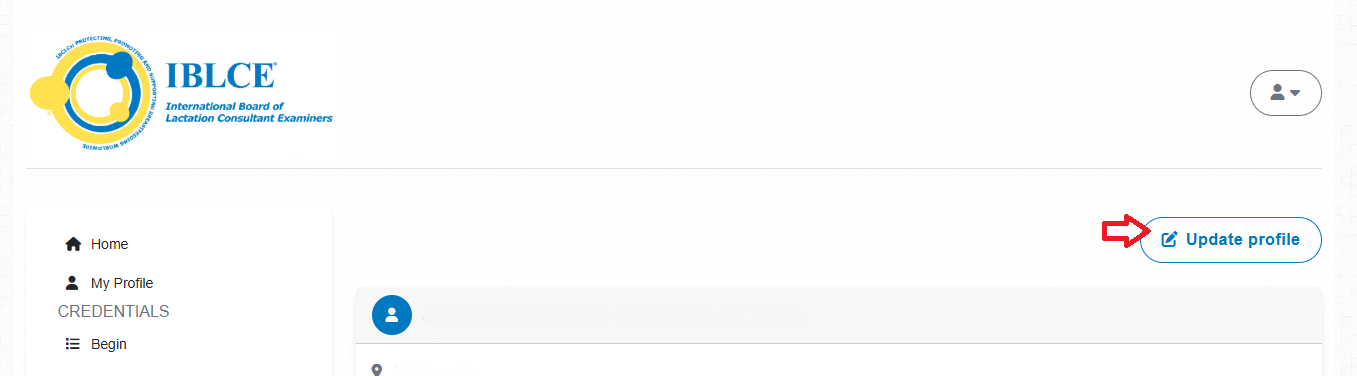
Once you’ve logged in, you’ll see your email address in the top right. Click on this for a dropdown menu. Select “Profile” and then “Update Profile.” Then you can change your email address to whichever address is best to receive IBLCE email.
Please don’t create a new account if you already have one! If you need to reset your password, you can see how to do so in the FAQ above: ” I am an IBCLC or sat the IBCLC examination, but I have never logged into my account. How do I log in?”
5. I am not receiving important emails from IBLCE and the IBCLC Commission. What should I do?
There are several steps you can take if you are not receiving our emails:
- Check that your email address is up to date in our online credentialing management system. Learn more about updating your email address here (FAQ#4).
- Check your spam/junk folder or “promotional” or “other” inbox in case our emails have been sorted incorrectly.
- Whitelist our email address and/or domain (“@iblce.org”) as permitted by your email settings. This will help prevent future emails from being blocked or sent to spam.
If you have taken all these steps and still are not receiving our emails, please contact the regional location that serves you.
6. How do I update my mailing address in the online credential management system?
Start by logging in to IBLCE’s online credential management system with the email you registered with IBLCE.
Once you’ve logged in, you’ll see your email address in the top right. Click on this for a dropdown menu. Select ‘Profile’.

Then you can review your contact information by clicking ‘Update Profile’ in the top left (under your email address). Then you can make changes as needed and click ‘Save Changes’.
Please don’t create a new account if you already have one! If you need to reset your password, you can see how to do so in the FAQ above: ‘I am an IBCLC or sat the IBCLC examination, but I have never logged into my account. How do I log in?’
7. How do I change the language for my online account?
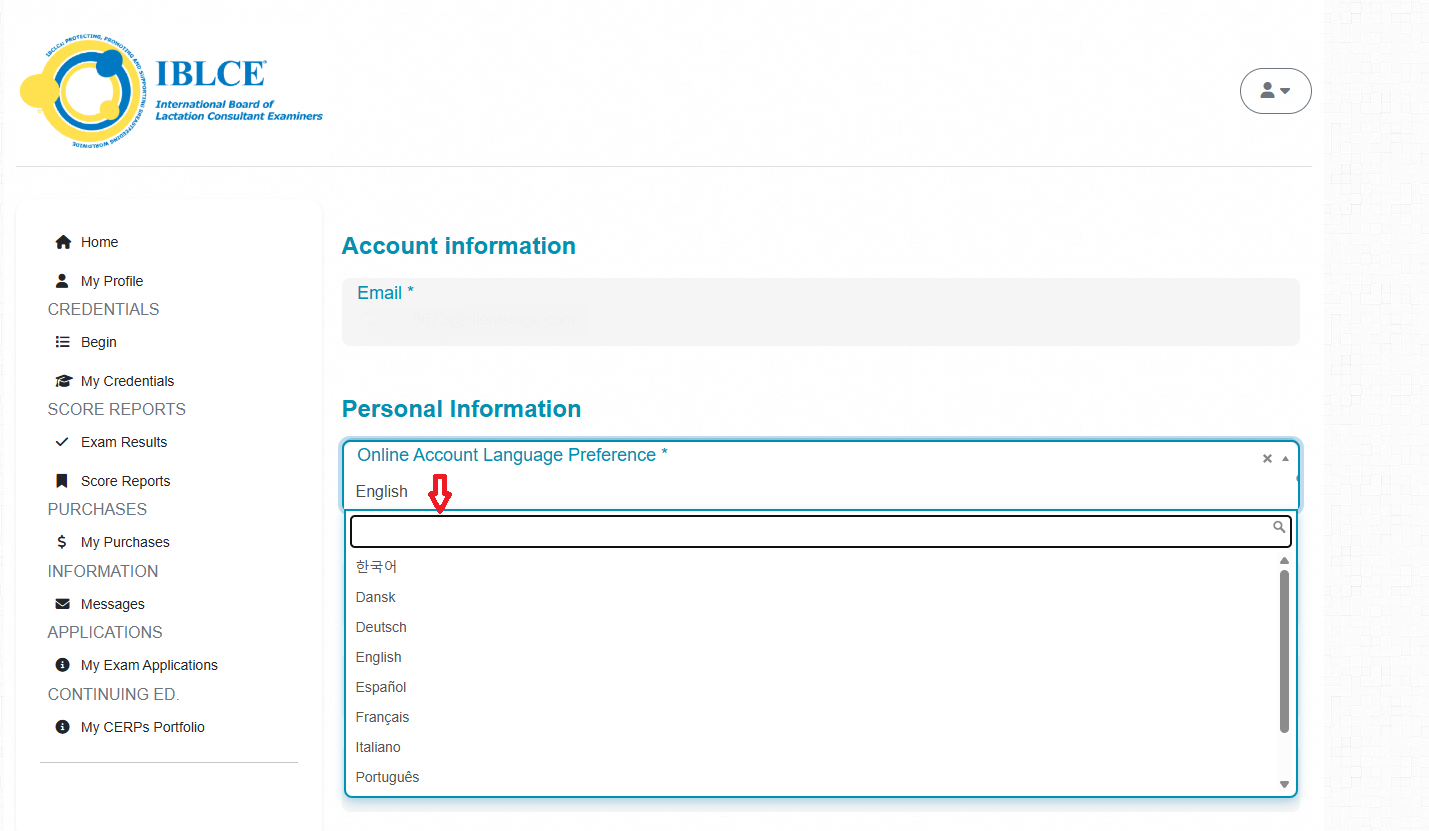
Select “My Profile” from the left-hand navigation menu.

Then, click “Update profile”.

Here, you can change your “online account language preference” to your preferred language.
8. I received my digital certificate and badge, but I would also like to purchase a paper certificate and/or ID card. Is this an option?
Current IBCLCs are able to purchase a printed certificate and/or ID card in their online credential management account.
- First, please click on “My Profile” on the left side of the screen to confirm that your mailing address is correct. If it is incorrect, please update your address before ordering a certificate.
- Then, click on “Home” and scroll down to the “Purchase” links as pictured below. Click on the certificate and/or ID card product that you would like to purchase.
- From the next screen, add the certificate and/or ID card to your cart and complete check out.
Mailing timeframes may vary depending on region. If you have any questions, please contact the region that serves you.

Applying for the IBCLC examination
1. How do I apply for the IBCLC examination as an initial candidate?
To apply for the IBCLC examination, log in to IBLCE’s online credential management system.
Click on “Begin” and select the examination application for the Pathway you have selected.
Please find videos showing you how to apply for the IBCLC certification for each Pathway below:
Application Quick Tips
- To select your birth date when creating a profile, click in the field to open a pop-up calendar. Click on the current month and year and then on the year. Click on the left arrow until you find your birth year. Then, select the appropriate month to find your date of birth.
- To submit a Pathway 3 Plan verification, use the “Begin” link in your account to locate the mentorship option. Click “Save to my Home,” then “Apply Here.”
- To submit an examination application, use the “Begin” link in your account. See the Pathway 1 or 2 video guides for an example.
- Make sure your email address is accurate. If your application entails further review, staff may send secure messages via your account and you will receive email notifications of these.
- If you are in Inactive Status, please find the reinstatement applications in your account.
- To Reinstate by Examination: Find the application in your account.
- To Reinstate by CERPs: Start by clicking the CERPs link in your account after completing the CE Self-Assessment.
Please see the Spanish and German pages for guides on accessing the system in those languages. Applications in other IBLCE languages can be found via online form on your language page.
2. How do I apply to recertify by the IBCLC examination?
To apply for the IBCLC examination, log in to IBLCE’s online credential management system.
As a recertifying IBCLC, you already have an account. Please see the “Accessing Your Account” section above if you need assistance logging in.
Next, click on “IBCLC Exam” and begin the IBCLC Recertification Exam Application. Complete the application according to your experiences and requests. Finally, complete and submit payment.
You can watch a short video to learn apply for recertification by examination here.
Application Quick Tips
- Make sure your email address is accurate. If your application entails further review, staff may send secure messages via your account and you will receive email notifications of these.
- The My CERPs Portfolio area is only for IBCLCs recertifying by CERPs. Candidates who are applying to recertify by exam will not use this option.
- If you are in Inactive Status, please find the reinstatement applications in your account.
- To Reinstate by Examination: Find the application in your account.
- To Reinstate by CERPs: Start by clicking the CERPs link in your account after completing the CE Self-Assessment.
Please see the Spanish and German pages for guides on accessing the system in those languages. Applications in other IBLCE languages can be found via online form on your language page.
Completing the IBCLC Continuing Education Self-Assessment (CE Self-Assessment)
The CE Self-Assessment is currently available online to IBCLCs due to recertify in 2026 – 2029 via the CE Self-Assessment Dashboard. If you are an IBCLC, an account will be created for you when you become eligible to take the CE Self-Assessment. Learn more about recertification here.
If you think you should have an account and are not sure how to access it, reach out to the region that serves you.
1. Will I receive an authorisation for the CE Self-Assessment?
You will receive an email confirming that you are eligible to take the CE Self-Assessment when you register for the CE Self-Assessment. You do not need this email to take the CE Self-Assessment. You can take it at any time after registering.
2. How do I log in to the CE Self-Assessment Dashboard?
You will receive an email with log-in details for the CE Self-Assessment Dashboard. This email will contain a link to reset your password to access your account. Once you have set up your account, you can log in here.
This email will be sent to the email address you have on file with IBLCE. If you are not sure what email you used or your email has changed, please contact your regional location.
3. How do I reset my password for the CE Self-Assessment Dashboard?
Go to the CE Self-Assessment Dashboard and click “Forgot your password?” Next, enter the email address that you have on file with IBLCE and click “Reset.” You should receive an email shortly with a link to reset your password.
4. How do I access the CE Self-Assessment?
Log in to the CE Self-Assessment Dashboard here. (See above for more information about logging in.)
Once you are logged in, you can change the website language in the top right if desired.
Click “Assessment” to find the CE Self-Assessment. If you need to access the CE Self-Assessment in a different language, please contact the IBLCE region that serves you.
Please do not continue with the remaining steps until you are ready to complete the two-hour CE Self-Assessment. You can log back in and continue at any time.
Click “Start Assessment” when you are ready.
You have launched the CE Self-Assessment! You now have two hours to complete the CE Self-Assessment. Read the instructions and click “Next” to complete the Self-Assessment.
5. What are the system requirements to take the CE Self-Assessment?
ExamStudio Web Delivery System Minimum Requirements Supported Internet Browsers
- *Google Chrome version 100 or later on Windows 8.1 or later, Mac OS X 10.9 or later (Mavericks), Chrome OS, Apple iOS
- Microsoft Edge on Windows 10
- Mozilla Firefox version 100 or later on Windows 8.1 or later or Mac OS X 10.9 or later
- Safari on Mac OS X 10.10 or later (Yosemite)
* Recommended
Hardware
Windows
- x86 or x64 (64-bit mode support for Internet Explorer only) 1.6-GHz (gigahertz) or higher processor; 512MB RAM
Mac
- Intel Core Duo 1.83-GHz (gigahertz) or higher processor; 512MB RAM
iPad Air, Android Tablets (e.g., Samsung Galaxy Tab S4), and Chromebooks
Additional Settings
- Screen resolution: minimum 1280 x 720
6. How do I access my Personalised Professional Development Plan?
Log in to the CE Self-Assessment Dashboard here. (See above for more information about logging in.)
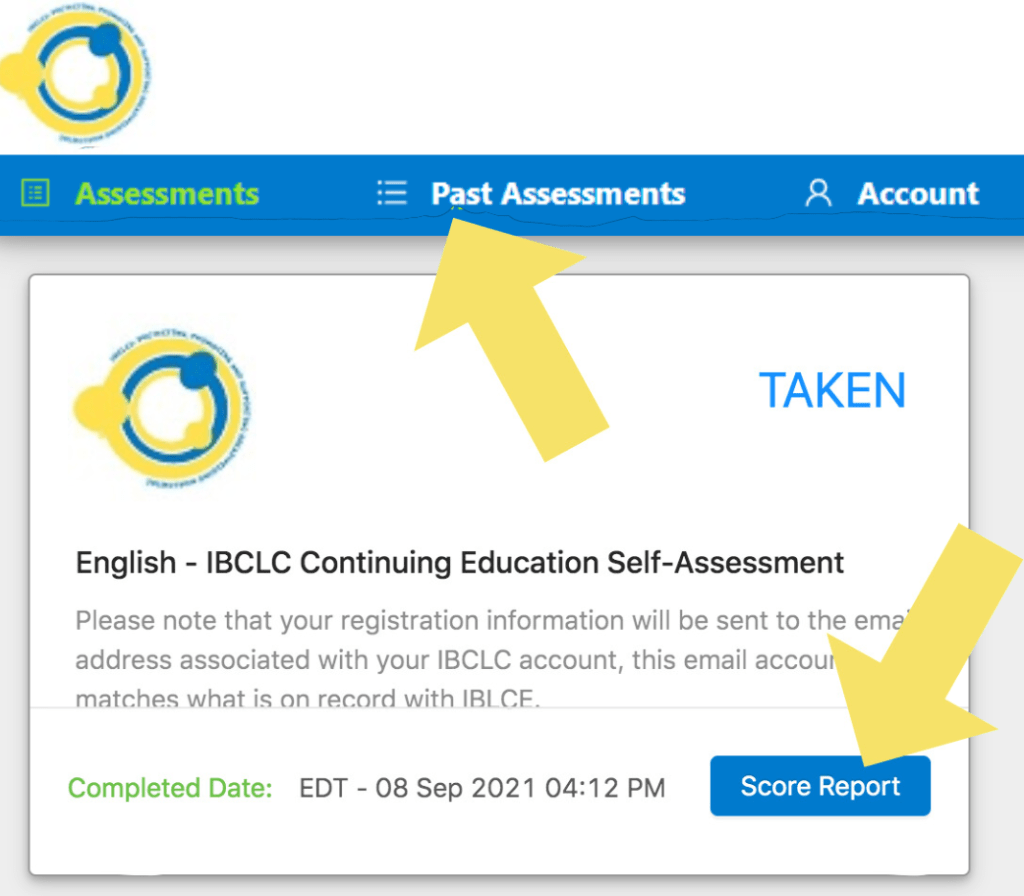
Click “Past Assessments” in the top menu.
Here, you should see the CE Self-Assessment that you took with the date of completion. Click “Score Report” to see your Personalised Professional Development Plan.
To save your Personalised Professional Development Plan for your records, you can print it or print to a PDF.
7. Who do I contact if I need support?
Please contact the regional location that serves you if you have any questions.
Recertifying by CERPs
Beginning with those due to recertify in 2022, all recertifying IBCLCs must take the Continuing Education Self-Assessment (CE Self-Assessment) before recertifying by CERPs. Please see the section above to learn more about the CE Self-Assessment.
1. How do I recertify by CERPs?
First, log in to your IBCLC account in IBLCE’s online credential management system. Learn more about accessing this system above.
Once you are logged in, click on “My CERPs Portfolio” on the left-side menu. Next, select “Add CERPs” to begin your application. Click “Save Changes” when you are finished.
Next, click “Home,” then “Submit Renewal” and answer all required (*) questions. Finally, complete and submit your payment.
You can watch a short video to learn how to apply for recertification by CERPs here.
Application Quick Tips
- Make sure you have completed the CE Self-Assessment and all Recertification requirements before starting your application.
- Make sure your email address is accurate. If your application entails further review, staff may send secure messages via your account and you will receive email notifications of these.
- If recertifying by CERPs, make sure you have access to your certificates before you apply in the event you are randomly selected for audit.
- To check on your IBCLC certification status, use the “My Credentials” section in the left navigation bar.
Finding Important IBCLC Credential Information in Your Account
1. Accessing My Credentials
Once you log in to your account, you can find your basic IBCLC credential information in the “My Credentials” tab of your account. “My Credentials” is located on the left-hand menu, pictured here.

Once you go to the “My Credentials” tab, you can find the following information:
| Credential | Credential # | Effective Date | Expiration Date | Status | Valid | Action |
| IBCLC | This is your IBCLC number | The date when you first became certified* | When your IBCLC credential will expire | If you are currently certified, it will say “Certified” | If you are currently certified, there will be a green check mark here | Clicking the paper icon here will download the IBCLC logo for your use. |
Checking Your Application Status
1. How can I check the status of my application for the IBCLC examination?
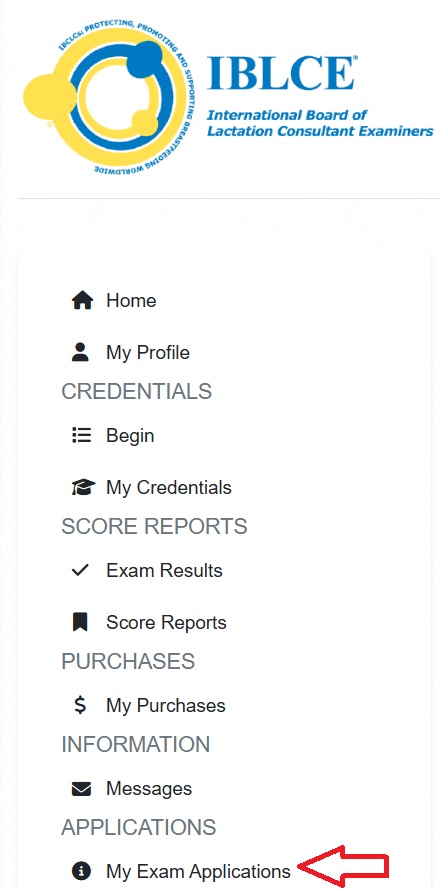
Upon successfully applying, you can see the status of your application by logging in to your existing account through the IBLCE online credential management system.
You can find notifications regarding your application on the home page or under “My Exam Applications” (pictured here).
If your notification reads as “currently approved”, then there is nothing further for you to do at this time. We will send you an Examination Authorisation Email when you are able to schedule your examination appointment.

If your notification reads as “pending review”, IBCLC Commission staff are reviewing your application. You may receive an email from staff as additional information or documentation may be required.

Please note, if your application is “in progress” or “unpaid”, then your application may not have been submitted yet. You may continue your application or contact your regional office for assistance.
2. How can I check the status of my recertification application via CERPs?

You can see the status of your application by logging in to your account through the IBLCE online credential management system.
Once you’ve logged in, you will see the menu pictured here. Please go to “My Credentials,” where you can verify if your application is complete by checking the expiration date on your certification.
If your application was accepted, your expiration date will have moved out five years. If the application is complete, there is nothing further for you to do at this time.
If the expiration date has not changed, please wait for an email from staff. Additional information or documentation may be required.
3. How can I view my reinstatement by CERPs application status?
You can see the status of your application by logging in to your account through the IBLCE online credential management system.
If your application has not been confirmed, you will see a notification with additional information on your home page. Please wait for an email from staff. Additional information or documentation may be required.
If the message in your account is “Your reinstatement application has been pre-approved”, then there is nothing further for you to do at this time. For candidates who applied for Reinstatement by CERPs in 2024, your IBCLC credential will become effective on January 1, 2025.
4. How can I view/print a receipt of my payment?
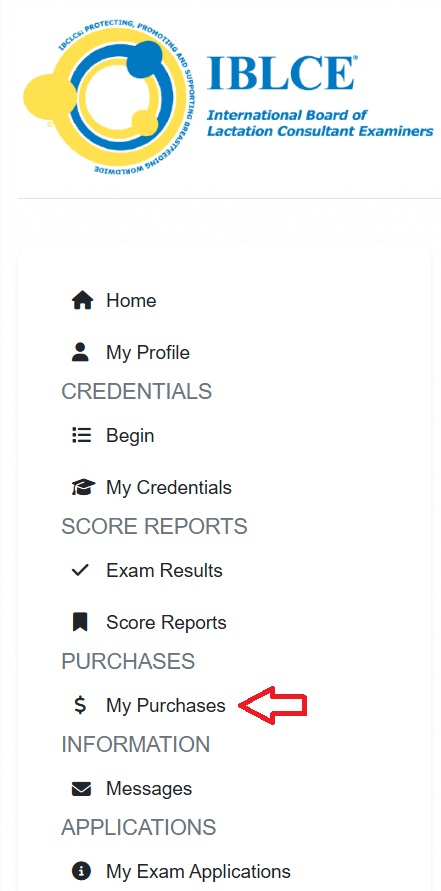
You can access your receipt by logging in to your account through the IBLCE online credential management system.
Once you’ve logged in, please go to “My Purchases.” Find the payment for which you would like to see the receipt and click “View” next to that payment. You can also print a copy from that screen.
Viewing Your IBCLC Examination Results
1. How can I see my results for the IBCLC examination?
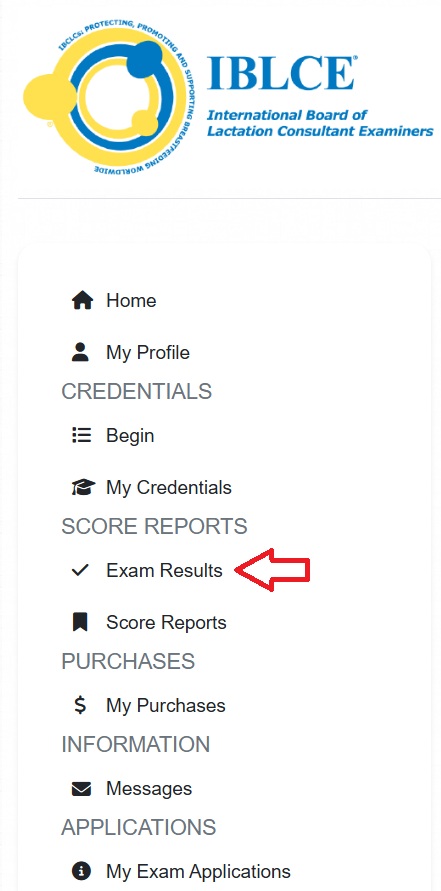
2. How can I view my score report?

Once you log in to your account, go to “Score Reports.”
On the “Score Reports” page, you can click on the examination that you sat for, for example, “April 2025 Examination,” to view your full score report. If you have taken the examination more than once since 2020, all score reports will be available on this page.
If you passed, you will also be able to see your IBCLC credential information on the “My Credentials” page. Learn more here.
Using IBCLC Digital Certificates
1. When will I receive my digital certificate?
In the October 2024 Briefing, we announced that IBCLC digital certificates would be issued incrementally over the next few months. This change is based on feedback from the 2023 IBLCE customer experience survey, where a significant majority of IBCLCs in all languages indicated that they would like to receive a digital certificate more immediately rather than a paper certificate. We are pleased to be able to deliver certificates digitally moving forward.
As of June 2025, all IBCLCs due to recertify in 2025 through 2029 have received a digital certificate.
New IBCLCs and IBCLCs who recertify by examination should receive their digital certificate within 6 to 8 weeks of receiving a passing examination result. IBCLCs who recertify by CERPs will receive an updated digital certificate before their current certificate expires.
2. Are digital certificates secure?
IBLCE’s digital credential vendor, Accredible, is committed to upholding the highest standards of compliance and safeguarding data privacy. A number of other organisations in the healthcare field, including the American Association for Respiratory Care, also work with Accredible to serve their user base.
Additionally, employers or other third parties will be able to easily verify your digital credential. Please see the “For Employers” section below to learn more about verifying an IBCLC credential.
3. How do I find my digital certificate?
Once you have set up your account, you can always sign in at www.credential.net to find your credential.
When your digital certificate is issued to you, you will receive an email with a link to view your credential. You can use this to access your credential for the first time. (Learn more about when you will receive access to your IBCLC digital certificate in FAQ #1 above.)
To set up your account:
1. Click the link to “View my credential” in the email you receive giving you access to your credential.
Search for an email with the subject line: “[Your Name], your IBCLC digital certificate is here!”

2. You will need to sign in to access tools to share or print your certificate. Below your digital certificate, you can select “Sign in to access more options”.

3. As an IBCLC, you already have an account. You will need to reset your password to access your account for the first time.
Select “Forgot password?” and follow the instructions to reset your password and log in.
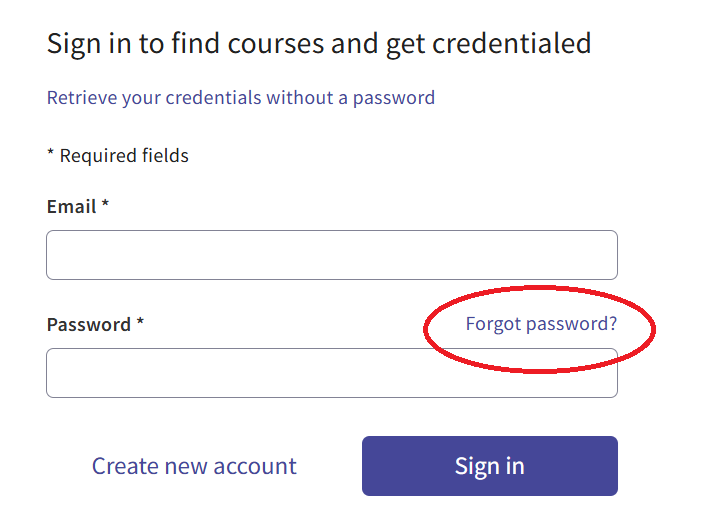
Once you have set up your password, you can always sign in at www.credential.net to find your credential.
4. I was advised that I should have received my IBCLC certificate by now, but I have not. What should I do?
First, check your spam email folder. If you find an email from “support@credential.net” in your spam folder, be sure to mark it as “safe”. You may receive emails from this sender related to your IBCLC certificate in the future.
If you don’t see your digital certificate email in your spam folder, please contact the regional location that serves you.
5. How do I download and print my IBCLC certificate?
1. When you are signed in, navigate to your IBCLC certificate.
2. Below your digital certificate, select the “PDF” button.

3. A PDF version of your credential will open in a new tab.
4. From here, you can save this onto your computer and print.
6. I received an email to access my digital certificate, but I can’t download it as a PDF on Accredible. What should I do?
To download your digital certificate as a PDF, you first need to claim it and log into your Accredible account. Follow these steps:
- Locate the email with the link to your digital certificate. The subject line says, “[your name], your IBCLC digital credential is here!” Then, click the “View My Credential” link in the email.
- On the certificate page, select “Sign in to access more options” below the digital certificate.
- Log in with your credentials. If this is your first time claiming a certificate, click “Forgot password?” to reset it.
Once logged in, you’ll be redirected to your certificate page. Below the preview, click the “PDF” button.
7. How do I make my IBCLC credential private?
You can change the visibility of your credential, so it is not publicly available. A private credential is:
- Visible only to you,
- Links to social media will not work, and
- It will be hidden from search engine results.
To set your credential to private:
1. Sign in to your credential (see above)
2. Select the “Privacy” button below your digital certificate

3. In the pop-up menu, select “Private”
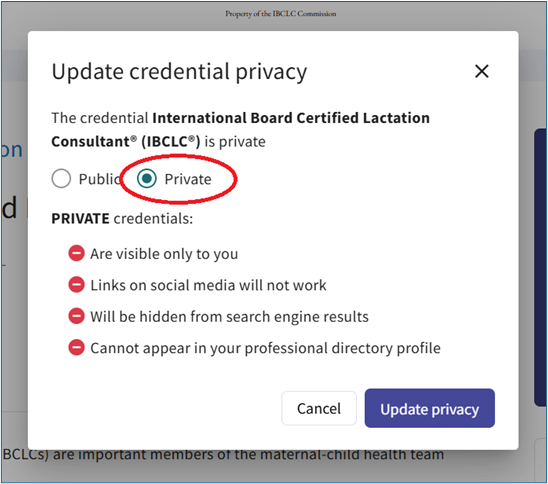
4. Select “Update privacy” to apply your changes.

8. How do I embed my credential into my email signature?
For Gmail or Outlook Email Signatures
1. Sign in and navigate to your IBCLC certificate.
2. Scroll down to find and select the “Embed” button.

3. If you use Gmail or Outlook, select the corresponding option in the pop-up that appears and follow the instructions.

For other email clients
1. Sign in and navigate to your IBCLC certificate.
2. Scroll down to find and select “Badge” to download a PNG file of your badge.

3. Go to the signature settings of your email client and insert the PNG file of your badge.
4. Highlight the badge image and use the “Link” function and paste your credential’s URL into it. (The URL is the web address for your digital credential.)
5. Make sure you save!
Please note that the badge will be large (400x400px) when embedded into your email signature or downloaded. You can use the resizing tool in your email client to make it the desired size.
9. How do I add my IBCLC credential to LinkedIn?
There are two ways to add your credential to LinkedIn.
To share on LinkedIn
Sharing your IBCLC certificate as a post on LinkedIn is a very visible way to share your accomplishment with your connections. This post will, however, become less visible over time as the newsfeed features more current content.
1. Select the LinkedIn “Share” button below your digital certificate. If you are not already logged in to LinkedIn, you will be prompted to do so.

2. You will then be taken to LinkedIn’s site, where you can choose to share as a post.
3. You can now write a message to accompany your certificate in your post and click “Post”.
To Add to Your LinkedIn Profile
By adding your credential to your LinkedIn profile, it will be visible as long as you would like. It will show up in your “Licenses & certifications” and will link to your credential where it can be verified.
1. Sign in to your credential.
2. Once signed in, select the “Add to LinkedIn Profile” button.

3. A pop-up will appear. Select “Add to my profile”.
4. Select “Save” to add your credential to your “Licenses & certifications” section on LinkedIn.
10. How do I add my IBCLC digital credential to my mobile digital wallet?
Note: You must have the Apple Wallet app or the Google pay app installed on your Apple or Android device respectively to add your IBCLC digital credential to your mobile digital wallet.
1. Using your smart device, go to your IBCLC digital credential. You can log in at www.credential.net.
2. Select your IBCLC digital credential to access more options.
3. You will see “ADD TO MOBILE WALLET” above your digital certificate. Click “Preview”.
4. View the preview and scroll down and select “Add to Wallet”.
11. The text on my digital certificate is not appearing as expected. What should I do?
If you notice a text issue, your internet browser’s auto-translate feature may be altering the language. Some browsers, like Google Chrome and Microsoft Edge, automatically translate content – including text inside PDFs – without indicating the change. This can cause text to be retranslated inaccurately.
To ensure you see the correct translation, try the following:
- Google Chrome: Right-click the page, select Translate to [Your Language]. Click on the three dots on the right side of the grey box, and click Never translate this site. If you are viewing a PDF, download and open it outside the browser.
- Microsoft Edge: Click the translate icon in the address bar. Click “More,” then select Never translate this site.
- Safari: Go to the address bar, click the translation icon, and select View Original. If you are using Preview on macOS to view the PDF, ensure translation settings are off.
For the most accurate text, we recommend downloading the PDF and opening it in a dedicated viewer like Adobe Acrobat.
FOR EMPLOYERS
1. How can I verify an IBCLC digital certificate?
If an IBCLC provides you their IBCLC digital certificate, you can find a “Verify Credential” link to view details about the credential.
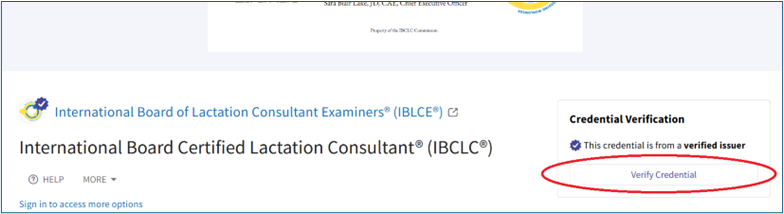
To verify any IBCLC credential, you can also visit and search the IBCLC Public Registry.
2. How do I verify a hard-copy certificate with a QR code?
IBCLCs can print a copy of their certificate with a QR code for verification. Use a QR reader on a smartphone to scan the QR code on the certificate. This will take you to their IBCLC digital certificate where you can click “Verify Credential” button to check the certificate.

3. How do I verify a hard-copy certificate without a QR code?
Some hard-copy IBCLC certificates may have a seal instead of a QR code. To verify any IBCLC credential, you can visit and search the IBCLC Public Registry.
Find instructions to use IBLCE’s online systems in your language on your language page.